How to Use 7-Zip

If you want to compress your files in order to save space on your disk, 7-Zip is one of the best tools for it. You can both compress and uncompress your files for free. Thus, you can keep reading to learn how to use 7-Zip for making your files smaller and more portable.
Features of 7-Zip
- It is a free compressing tool.
- It has language options for 87 languages. Therefore, it is available all over the world.
- It uses the AES-256 encryption system for security. It means that your files would be safe there.
- The software is compatible with Windows Shell, which is a graphical interface for Windows’ operating system.
- It has a high compression ratio for ZIP and GZIP formats.
How to Compress Files with 7-Zip
Before examining the ways of using 7-Zip, you should install the application from their official webpage. Then, you can start working on your files. To compress files:
- Once you open the application, you will see your files to pick for zipping them. Select the files you want to compress and click the “Add” button on the left top of the page.
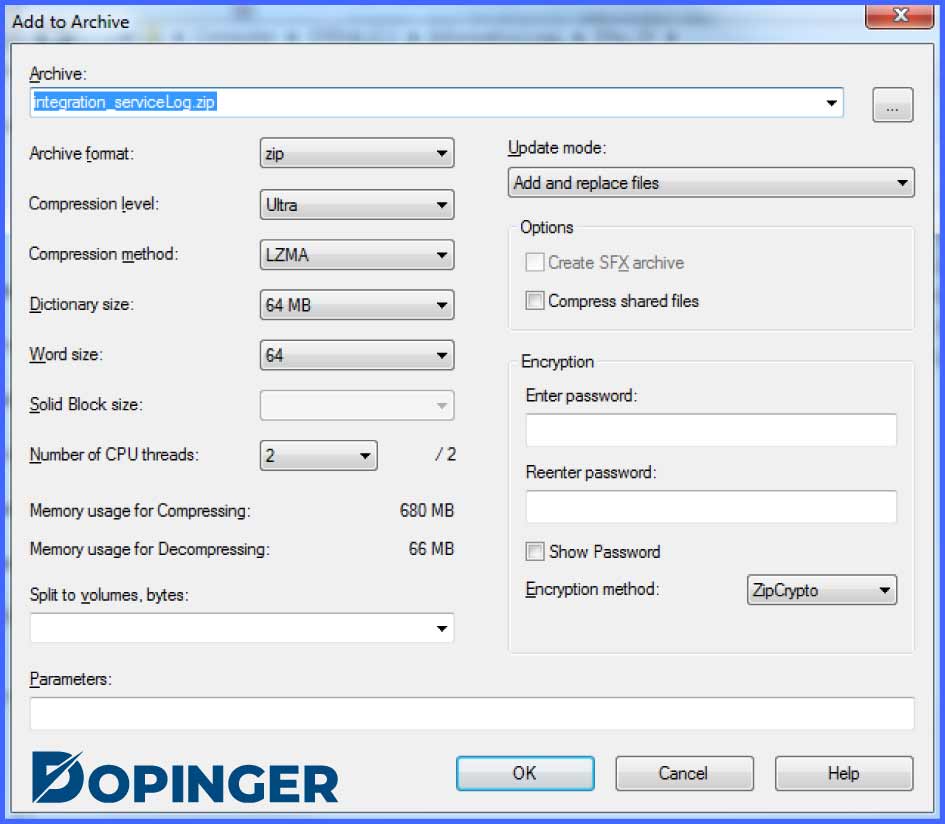
- After adding them into the archive, you will see a window that you can adjust the settings of the files. It includes:
- Archive: This option represents the archive file’s name that you want to choose for your file.
- Archive Format: With this option, you can choose the format of your file. The “7z” format is the suggested one for the best compression rates.
- Compression Level: Compression level represented compression time and saved space. Choosing the “Store” level makes your compressions the fastest. However, if you choose the “Ultra” level, your files would be compressed slowly with the highest level of saved space.
- Compression Method: This option includes different methods for your compression. The “LZMA” method is the suggested one for the best compressions.
- Split to Volumes, Bytes: With this option, you can split your archive into parts.
- Encryption: The encryption option allows you to protect your files with a password that you decide.
- Once you adjust the settings, you can click “OK.” After clicking, the file will appear on the original location of the file.

FAQ About 7-Zip
If you compress your files, you save space on your device. Therefore, you use your space more efficiently. Besides, it enables you to manage your files easier.
The results can differ among these two applications. However, generally, WinRar compresses more, and 7-Zip compresses faster.
7-Zip does not steal information from your device. Besides, it has an AES-256 encryption system for your files’ security.
You can adjust the level of compression while creating an archive. There are six different compression levels, and the “Fastest” and “Fast” levels are the best modes for higher speed.
Both installing and using the features of the 7-Zip are free. It means that you can compress and uncompress your files with no charges.
Using 7-Zip Briefly
7-Zip allows you to compress and uncompress your files to save more space on your computer with no charges. The compressions are adjustable according to speed and compression ratio. Besides, you can protect your files with passwords in addition to 7-Zip’s security precautions. Thus, you can be sure that there is no harm in using 7-Zip for your files and information. If you are a visual artist, then you should better check out how to lazy load images.
The post How to Use 7-Zip is republished from Dopinger Blog


Yorumlar
Yorum Gönder