How to Unpublish a WordPress Site

WordPress maintenance mode; an option that you can place on your website if you make changes to the update, design, or content or need to fix a security vulnerability. It’s a landing page that explains why your website is down and when it will be back on. If you want to know about how to unpublish a WordPress site, however, keep on reading.
There are many different reasons to put WordPress in maintenance mode and many different ways to do it. In this article, we will examine in detail how to unpublish your WordPress website. So let’s get started.
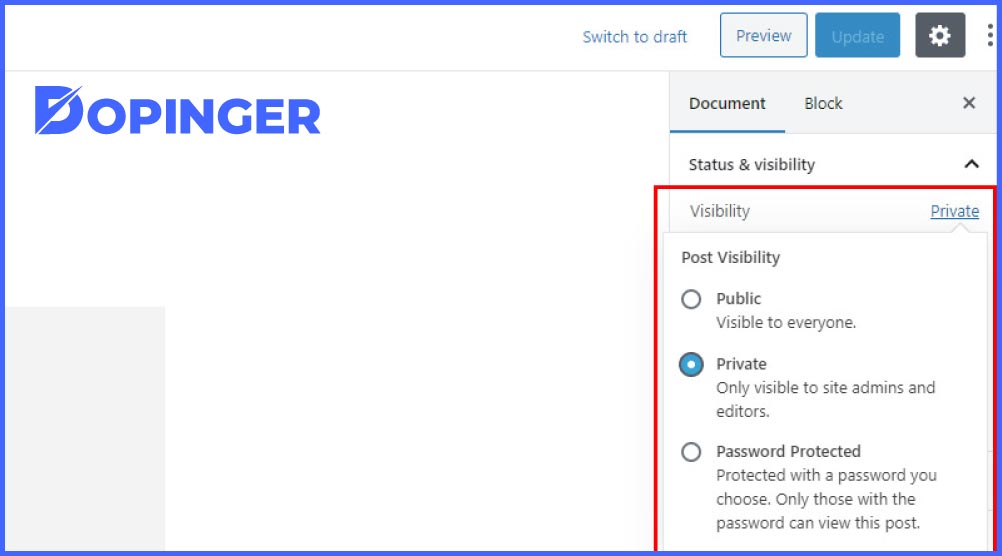
How to Unpublish a Page
Now let’s look at how to make a WordPress site into maintenance. There are two ways to do this. The first method is to do it using a plugin as with every operation. The other method is to make changes to your site’s files and codes. If you do not have good code and WordPress knowledge, we do not recommend using this method to not make irreversible mistakes. Let’s learn to activate this mode by installing a plugin here. Again, there are many plugins for maintenance mode.
Let’s use the “Coming Soon Page, Under Construction & Maintenance Mode by SeedProd” plugin, for example usage.

The Steps
We suggest you follow these steps to be able to unpublish a WordPress site.
- First, let’s install our plugin. If you do not know the plugin installation, you can click here to read the related article and learn the plugin installation.
- After installing and activating the plugin, you will see the “SeedProd” tab in the menu on the left side of the WordPress admin panel. We click on this tab.
- On this page, we need to make some changes in the “content” tab. First, let’s mark the option of “Enable Maintenance Mode” in the “status” section. This action will activate maintenance mode.
- We will create the messages we want to show users on the rest of the page. We can choose if we want to use the logo in the “Page Settings” section. In the “Headline” section, you can write the short message you want to appear, namely the title of the message you want to give. In the “Message” part, you can make a long explanation.
Don’t forget to click on the “save all changes” button under the changes you made. Apart from these procedures, there is nothing else you need to do. Thus, we realized the process of taking the WordPress site into maintenance.

FAQs on Unpublishing a WordPress Site
WordPress is a content management system that allows you to produce, publish, and manage all kinds of content with clicks, without the need for any coding knowledge.
WordPress is in a very practical position for its 5-minute installation, simplicity, and ease of use and update.
Many plugins of WordPress operate with a load/run logic. You can search for the plugins you like in the “Extensions” section of your admin panel and install them on your blog.
Although WordPress itself is free, you have to pay for hosting and domains.
If you want to add a new page, follow tap on pages and click on add new.
Conclusion on How to Unpublish your WordPress Website
There are many ways to put WordPress in maintenance mode. This method is to use the WP maintenance mode plugin. This plugin will render a beautiful landing page. If you are not familiar with coding this is the way to go. We hope we were able to teach you the WordPress maintenance mode in this article. If you ask for some we can interest you with our article on how to update WordPress.
The post How to Unpublish a WordPress Site is republished from Dopinger Blog


Yorumlar
Yorum Gönder