How to Duplicate a Page in WordPress: A Guide

WordPress is currently the most used content management system in the world. You may use this platform for many different needs. So, have you ever asked the question of how to copy a page in WordPress? There are many reasons you might want to duplicate a post or page in WordPress. One of these reasons is that it allows you to work on content without affecting the original version.
Another reason is that it provides an easy way for customers to review content and make changes before it becomes active. Of course, you may copy and paste all content and save it as a draft. However, this process does not include SEO optimization, page outlines, featured images, and other relevant data. Regardless of your goal, duplicating pages or articles in WordPress is easy, thanks to plugins. With these plugins, you will be able to duplicate by preserving the original post. Let’s take a detailed look at why you might want to duplicate a page in WordPress.
Reasons to Duplicate a Page in WordPress
Consistency is critical in website design. In fact, you should have a tool to help you copy the layout or settings of a page. This way, you will likely be more efficient at maintaining consistency across the entire website.
There are several ways to make changes to a production website. You can use the Git repository to make and save large edits. Then, you may sync them with WordPress as soon as you are done. You can apply your changes directly to the page in production, hoping that your visitors are not active. Or, you can duplicate the page, make as many important changes in WordPress as you want. Then, when it’s 100% ready, you can publish those changes by replacing the old page.
You may be an expert in creating websites in a specific industry. You know that these websites often have the same requirements in terms of pages, layouts, etc. Creating a website from scratch for every new customer may be quite laborious. Instead, you can create a page template to use as a base. This will save you time and money. You can create the first page and customize it for your customer. Then, you can duplicate that page’s style and settings for another project. WordPress does not naturally allow you to duplicate pages or posts. For this, you need help from plugins.
Three Ways to Duplicate a Page in WordPress
There are more than a single way to duplicate a page in WordPress. We suggest you take a look at these three ways that we picked for you.
Duplicate Post Plugin
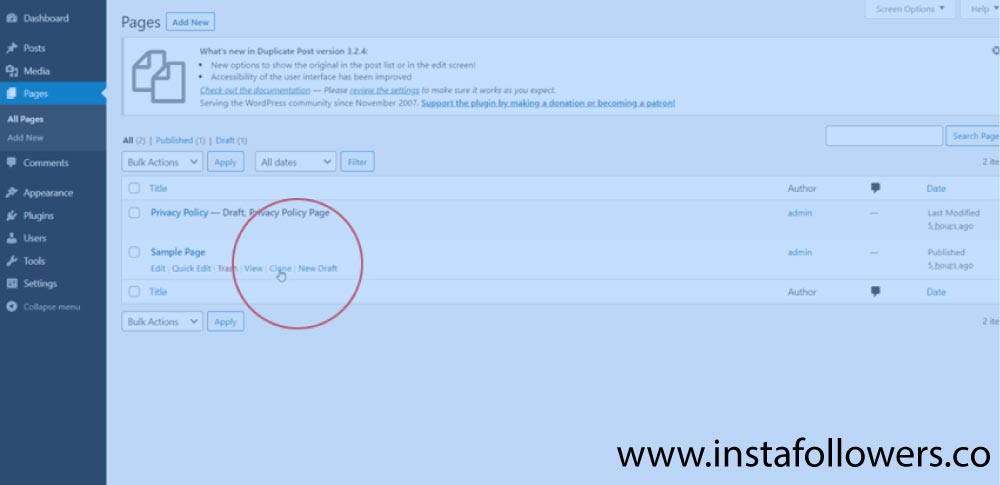
Duplicate Post plugin is one of the easiest ways to copy a page or post in WordPress. This plugin allows you to create a clone. It also allows you to add your own customization options. Predefined attachments can be added to the clone page or post. Moreover, you can manage the functionality of the plugin based on user roles. Follow the steps below to clone a page or post using this plugin:
- Download and activate the plugin.
- Then, open the pages tab, and open the All Pages section from there.
- Now, when you hover over the page or post you want to copy, you will see two new options: Clone and New Draft.
- You can create a clone version of the selected article by clicking on “clone.”
- If you click the new draft, it creates a clone version of the selected post. You can open this clone in the post editor. Here, you may choose to save or publish by making your desired edits.
Duplicate Page and Post Plugin
Duplicate Page and Post is another plugin that you can use to copy pages and posts. This plugin is a handy WordPress duplicate page plugin. It allows you to create new copies while preserving the formatting of all content, title, page, or post. Using this duplicate page plugin is so easy. Just follow the steps below:
- Download and activate the Duplicate Page and Post plugin.
- If you want to copy a page, open the All Pages section from the Pages tab. If you want to copy a post, open the All Posts section from the Posts tab.
- Hover over the article that you want to copy and click the “Clone Me” button.
- Now, this button will take you to the cloned post or page.
- Use either publish or save as draft after editing.
Post Duplicator Plugin
If the above two plugins do not meet your needs, you may try using Post Duplicator plugin. This plugin may copy exactly the selected text with custom fields and classifications. All you have to do is:
- Download and activate the Post Duplicator plugin.
- Hover over the post or page you want to copy. Then, click Duplicate Post or Duplicate Page.
- The plugin will create an instant copy of the page or post.
If you are interested in learning about other Plugins see our review of the 10 best WordPress plugins.
Benefits of Page Duplication in WordPress
After duplicating a page, you will be able to open that duplicate page in WordPress while keeping all your customization. That means your WordPress copy page will be ready to use without making any changes on the original page. Thus, you may use this duplicate WordPress page as much as you want. Now, after creating a dedicated posts page, you will be able to duplicate this page. After this stage, you will be able to make arrangements on many issues. Those issues are post title, post status, and post link on the page you duplicated.
FAQs About Duplicating a Page in WordPress
You may copy a WordPress page or post by coding the WordPress file. However, before modifying any WordPress files, you must create a backup of your site.
To install a new plugin, first, log into your WordPress dashboard. Click the plugins in the left menu and click the add new section from the menu that opens. From here, enter the search terms related to the plugin you need in the plugin search section.
WordPress page duplication plugins generally work correctly without any special settings. However, you may fine-tune most page duplication plugins even more.
It is possible to do this in WordPress page duplication plugins. You may duplicate multiple articles at the same time by selecting several articles in batch operations.
WordPress page duplication plugins may offer different features depending on your intended use. Plugins that contain some high-end features may be charged. However, there are also functional plugins you can use for free.
Briefly, Duplicating a Page or Post in WordPress
As you can see, it is quite easy creating a duplicate page in WordPress. All you have to do is get help from plugins for this process. You can have many reasons to duplicate pages in WordPress. You may access WordPress page duplication plugins on the WordPress website. Those plugins are categorized as post editor in the WordPress site. You may use paid or free plugins, depending on your usage level. Using page duplication plugins in WordPress will be very useful for you. Thus, you can make changes as you wish on the duplicated page without damaging the original. This will save you time and money.
The post How to Duplicate a Page in WordPress: A Guide is republished from Dopinger Blog


Yorumlar
Yorum Gönder