How to Convert HTML to PDF? (Easy Guide)
Convert HTML is one of the things that many people constantly do. Generally, HTML conversion is a method used to save web pages that are seen online and desired to be viewed offline. With this method, it is possible to view HTML pages converted to PDF pages format even when you are not connected to the internet. So how can you convert HTML to PDF? What should I do to view HTML files as a pdf document? You can read our article to perform conversion operations easily and quickly.
How To Change HTML To PDF?
There are many different methods you can use to convert existing web pages from HTML to pdf format. There are some applications that you can use to perform this process. You can perform converting HTML to PDF operations with the help of converter tools on applications or web pages. We have compiled the easiest way to perform this process without any tools for you.
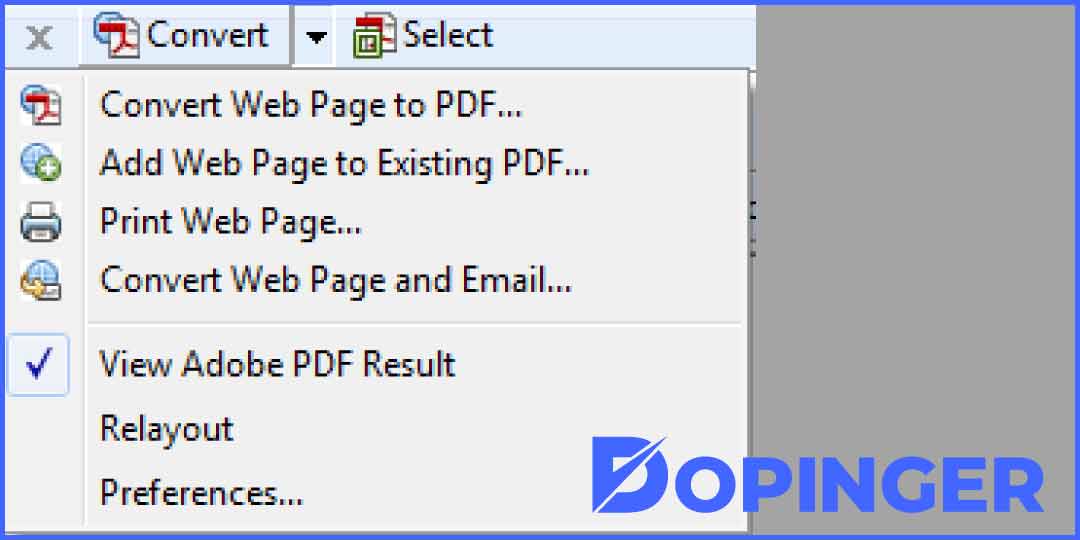
If you are using the Adobe Acrobat PDF viewer, you can do this very easily. You can complete the pdf conversion process by following the steps below, step by step.
- Open the Adobe Acrobat application.
- Click on the toolbar in the application and find the online tools section.
- Click “Convert to PDF.” Click on the command and add the link.
- When the conversion is complete, click on the result file in PDF format. To have a PDF that looks like a web page, just follow these steps.
How to Convert to PDF via Browser?
Many users who do not use Adobe Acrobat can search for different methods and applications. One of the most unknown but most functional and useful methods is converting to pdf via a browser. Doing this is as easy as doing it through Adobe Acrobat. You can convert HTML files to PDF via the browser by following the steps below.
- Open the Google Chrome toolbar.
- Click File and then Print.
- Click on the Save as PDF option in the destination section on the print screen that appears.
- Before completing the process, you can choose which pages you want to save from the Pages section.
- Complete the process, and then you will get a file in pdf format but suitable for offline use that looks like a website.
By converting HTML to PDF, you can do it when you don’t have an internet connection or when you want to view certain pages after a long time. So you can store web pages without having to have an internet connection in any case.
FAQ About HTML
HTML is a text markup language used when creating a web page. The concept is known as “HyperText Markup Language.” Although many people think of HTML as a kind of programming language, HTML is actually a text markup language. It can also be expressed as the text language that browsers use to make sense of web pages.
HTML is a language used for site design. However, it alone is not sufficient to carry out all site design activities. For this reason, different tools, such as CSS, can be preferred. CSS is also a text sign language like HTML.
HTML codes are the general name of codes used to add and remove elements on a web page in the HTML text markup language. It is possible to make changes directly on the web page using these codes.
HTML 5 is one of the developed versions of HTML. That is, it is treated as an updated version of the existing HTML markup language rather than a new markup language.
HTML is the easiest sign language to learn. It is highly preferred because it is a language that can be easily learned and has a smooth form. However, it can work in harmony with other sign languages.
Conclusion On HTML to PDF
People can convert PDF files into HTML by following the specified steps. The HTML extension, which has many benefits, as described, is ideal for many people. People who do not want to lose their files can use HTML to avoid sudden accidents.
The post How to Convert HTML to PDF? (Easy Guide) is republished from Dopinger Blog


Yorumlar
Yorum Gönder